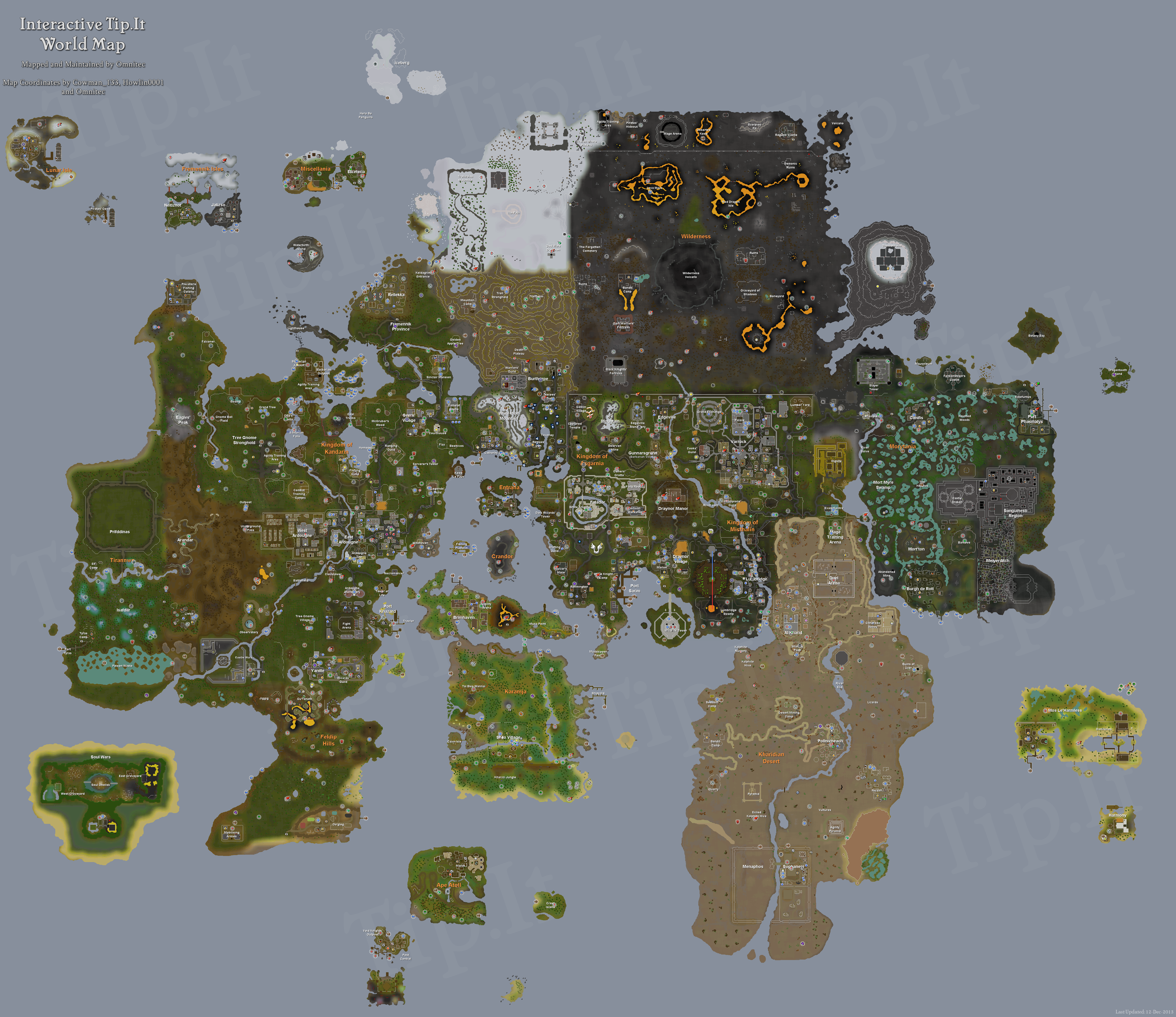
 |
Agility Training |
 |
Altar |
 |
Amulet Shop |
 |
Anvil |
 |
Apothecary |
 |
Archery Shop |
 |
Axe Shop |
 |
Bank |
 |
Brewery |
 |
Candle Shop |
 |
Chainmail Shop |
 |
Clans: Guard |
 |
Clans: Scribe |
 |
Clans: Sergeant-At-Arms |
 |
Clans: Vexillum Stands |
 |
Clothes Shop |
 |
Combat Training |
 |
Cookery Shop |
 |
Cooking Range |
 |
Crafting Shop |
 |
Daily Challenges |
 |
Dairy Churn |
 |
Demon Flash Mob site |
 |
Distractions/ Diversions |
 |
Divination: Wisp Colony |
 |
Dungeon |
 |
Estate Agent |
 |
Farming Patch |
 |
Farming Shop |
 |
Fired Up Beacon |
 |
Fishing Shop |
 |
Fishing Spot |
 |
Food Shop |
 |
Fur Trader |
 |
Furnace |
 |
Gem Shop |
 |
General Store |
 |
Goblin Raid Site |
 |
God Emissary |
 |
Grand Exchange |
 |
Gravestone Exchange |
 |
Guide |
 |
Hairdresser |
 |
Helmet Shop |
 |
Herbalist |
 |
Hunter Store |
 |
Hunter Training |
 |
Jewellery Shop |
 |
Kebab Seller |
 |
Lodestone |
 |
Loom |
 |
Loyalty Rewards Shop |
 |
Mace Shop |
 |
Magic Shop |
 |
Makeover Mage |
 |
Mini Obelisk |
 |
Minigame |
 |
Mining Shop |
 |
Mining Site |
 |
Pet Shop |
 |
Photo Booth |
 |
Platebody Shop |
 |
Platelegs Shop |
 |
Plateskirt Shop |
 |
POH Portal |
 |
Pottery Wheel |
 |
Pub / Bar |
 |
Quest Start |
 |
Rare Trees |
 |
Resting Spot |
 |
Runecrafting Altar |
 |
Sandpit |
 |
Sawmill |
 |
Scimitar Shop |
 |
Shield Shop |
 |
Shortcut |
 |
Silk Trader |
 |
Silver Shop |
 |
Slayer Master |
 |
Spice Shop |
 |
Spinning Wheel |
 |
Staff Shop |
 |
Summoning Obelisk |
 |
Summoning Store |
 |
Sword Shop |
 |
Tannery |
 |
Taskmaster |
 |
Tools for Games |
 |
Transportation |
 |
Vambrace Exchange |
 |
Vegetable Store |
 |
Water Source |
 |
Windmill |
 |
Woodcutting Stump |


We all make mistakes, even the Tip.It Crew. If you find an error in the world map that needs to be corrected, find something that hasn't been updated, or simply wish to give feedback, the world map topic on the Tip.It forum is the ideal place to do so.
Note: You will need a Tip.It forum account to post.
Please try to be as descriptive as possible in order for us to better understand you.